
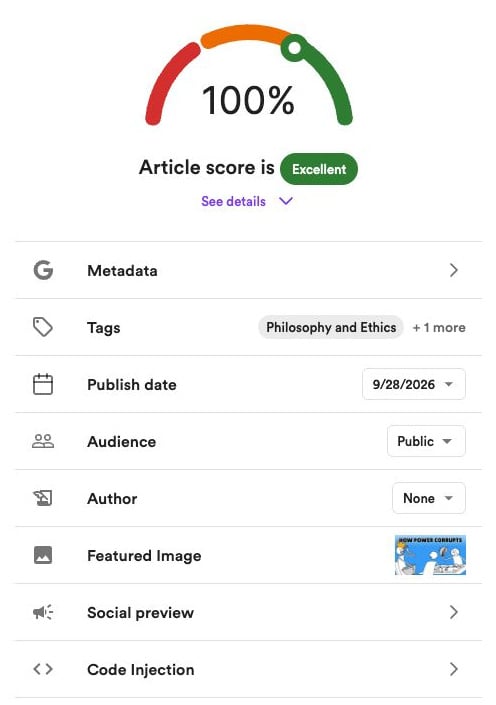
Article score
Convella scores your article to help you review its readability, structure, and SEO. Click See details beneath the score to explore:- Readability — Estimated reading grade level.
- Content structure — Word count and the length of paragraphs, sections, and sentences.
- Images — Image count and missing alt text.
- Links — Link count and broken links.
- Keyphrase analysis — Enter a target keyphrase to check its frequency and use in the title, introduction, and meta description. This section only contributes to your score when you enter a keyphrase.
- AI content detector — For articles generated from videos, scan for text that may be flagged as AI-written. Access depends on your plan.
Your score is a guide to improving your article. You don’t need a particular score to publish.
Available settings
Metadata
Edit the article’s Slug, Meta title, and Meta description. The slug is the final part of its URL. You can enter these yourself or use Generate or Regenerate for suggestions.Tags
Organize your article with one or more tags. Your first selected tag is the primary tag.Publish date
Choose Video publish date to use the original video’s date, when available, or Custom date to set your own.This controls the date displayed for the article. It does not schedule the article to publish later.
Audience
Choose who can read the article:- Public — Anyone.
- Members only — Readers signed in with a free or paid membership.
- Paid members only — Readers with an active paid membership.
Author
Select an author, choose None, or click Add author to create one. You can also edit the selected author’s details.Authors
Manage your website’s author profiles under Settings → Articles → Authors.- Create — Click Add author, enter a name and optional description, and upload a profile image if you’d like. Click Create author.
- Edit — Click Edit beside an author, make your changes, then click Update author.
- Delete — Open the author’s editor and choose Delete author from its ••• menu.