Editing and formatting
Open an article from your Articles page to start editing. Click in the article to edit its text. Use the toolbar to add headings, bold, italic, lists, links, quotes, and more. You can also undo and redo changes from the toolbar.
Adding content
Place your cursor where you want to add something, then choose an option from the toolbar:- Images and videos — Upload an image, choose a stock image, or embed a video. For articles generated from videos, you can also insert screenshots from the original video.
- Call to action — Insert a saved CTA, such as a signup form, or choose Create call to action… to make a new one.
- More — Add buttons, tables, code blocks, dividers, or a table of contents. This menu also includes FAQs for generating frequently asked questions and Paywall for marking where restricted content begins.
Saving and publishing
Your changes are saved automatically as you edit.- Drafts — Click Preview to check how your article will look, or Publish to open the publishing options.
- Published articles — Click Publish changes to update the live article.
Saving changes to a published article does not update your live website. Your existing article stays live until you click Publish changes.
Regenerating articles
To create a new version from the original video, open the ••• menu in the top-right corner and select Regenerate. Adjust your generation settings, then regenerate the article.Regeneration replaces the article’s current content. It is available for articles created from videos within the last three months, rather than articles written from scratch.
Revision history
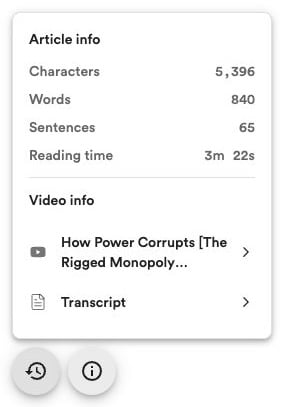
Click the history icon in the bottom-left corner to open Revision history. Choose Use revision beside a previous version to restore it in the editor. Regenerating creates a revision, but individual manual edits are not saved as separate revisions. Revision history is not a history of every edit. For a published article, click Publish changes when you’re ready to make the restored version live.Article information
Click the info icon in the bottom-left corner to see character, word, and sentence counts, along with estimated reading time. For articles created from a video, you can also open the original video and view its Transcript.