
Free memberships
Under Who should be able to subscribe to your site?, select Public to let readers join for free. Free members can read members-only content and subscribe to your newsletters when newsletters are enabled.Free memberships don’t require Stripe. Manage email delivery separately in Newsletter settings.
Access settings
Membership → Access has separate controls for visiting your website and signing up.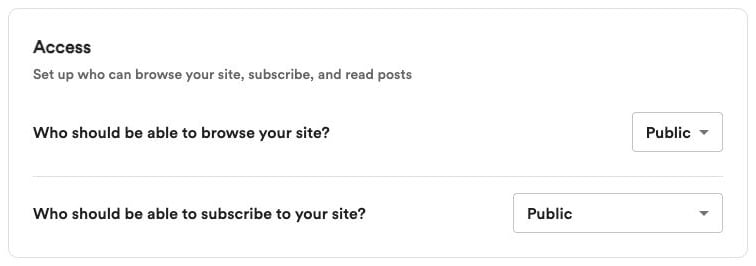
Who can browse your website?
- Public — Anyone can visit.
- Private — Visitors need your access code. Your code appears below this setting, with an option to update it. A spinner and Loading access code… indicate when the code is still loading.
Who can subscribe?
- Public — Readers can sign up for free, with paid subscriptions available if you’ve set them up.
- Paid members only — Readers must purchase a paid subscription to sign up. Complete paid membership setup first.
- Nobody — Prevent new signups and turn off newsletters.
Selecting Nobody doesn’t delete existing members. You must end active paid memberships before selecting this option.
Paid memberships
Paid memberships are available on the Creator and Business plans. Offer one paid membership with monthly and annual pricing.1
Connect Stripe
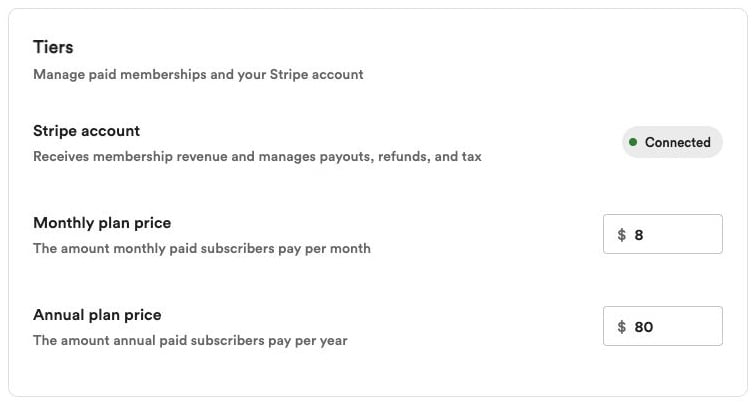
Open Settings → Membership → Tiers and click Connect Stripe.Follow Stripe’s prompts to create or connect an account, then return to Convella.
2
Finish account setup
Check your Stripe account status. If more information is needed, click Continue Stripe setup. If the account is under review, payments become available once Stripe finishes its review.
3
Set your prices
Enter your Monthly plan price and Annual plan price, then click Save.
Members-only content
Open an article’s Settings → Audience, or a page’s Settings → Page access, and choose who can read it:- Public — Everyone can read it.
- Members only — Signed-in free and paid members can read it.
- Paid members only — Only members with paid access can read it, including complimentary members.