
Creating and managing tags
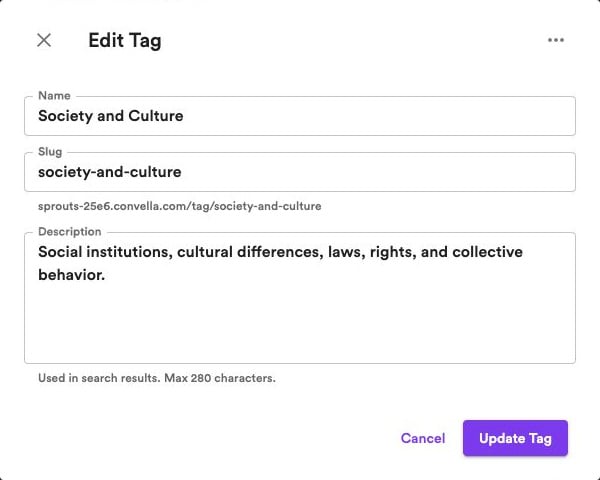
Open Tags in your dashboard. Click Add tag to create one, or select an existing tag to edit it. Each tag has three settings:- Name — The name readers see on your website.
- Slug — The last part of the tag page’s URL, such as
gardeningin/tag/gardening. - Description — A short description used in search metadata, up to 280 characters.
Assigning tags to articles
1
Open article settings
Open an article and click Settings in the bottom-right corner of the editor.
2
Choose tags
Select Tags, then select or deselect the tags you want. You can also choose Add a tag to create one from here.
Articles can have multiple tags. The first selected tag is the primary tag.
Displaying tags on your website
Each tag has its own page showing published articles associated with that topic. You can use tags to:- Organize your homepage — Add an Articles section and choose a tag as its source, or group a single feed by tag.
- Create navigation links — Add a Tag link to your header navigation.
- Label article previews — Enable Show tag under Home → Article previews.
- Show tags on articles — Enable Tags under Articles → Design → Before article.