
Creating calls to action
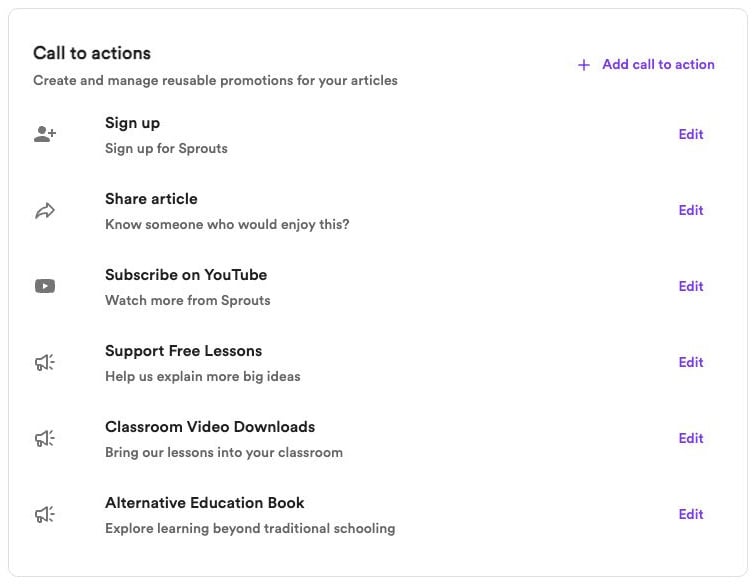
Open Calls to action in Settings to manage your CTAs. Click Add call to action to create one, or Edit to customize an existing one. Built-in CTAs include:- Sign up — Invite readers to subscribe to your website.
- Share article — Let readers share the article they’re reading.
- Subscribe on YouTube — Invite readers to subscribe to your connected channel.
Customizing calls to action
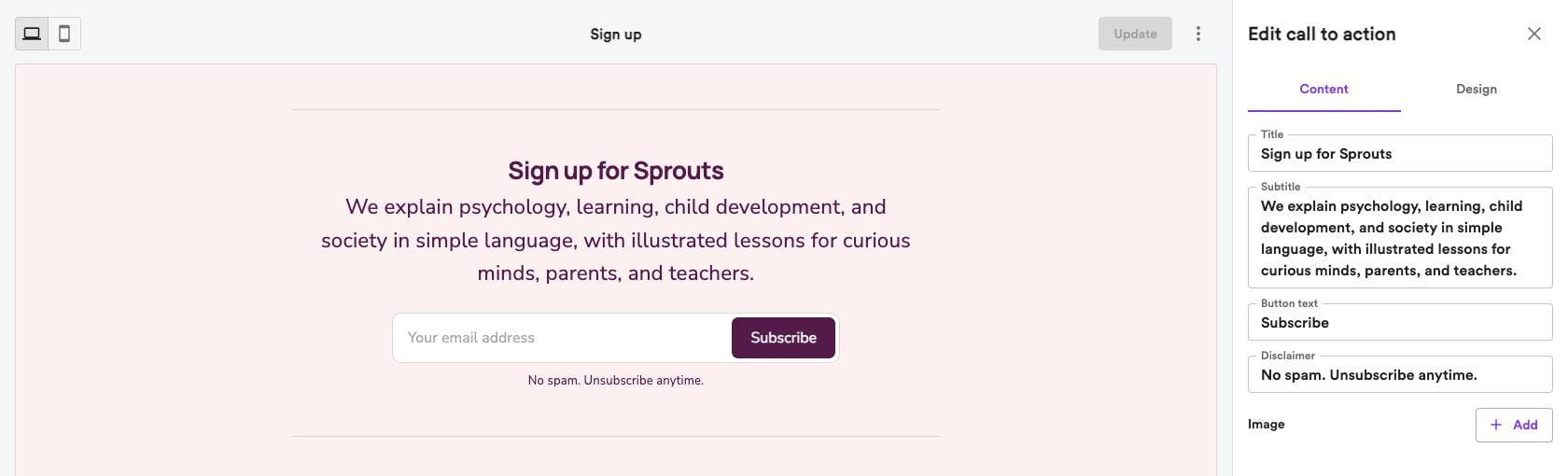
The CTA editor has two tabs and a live preview:- Content — Edit the title, subtitle, button text, and image. For custom CTAs, choose the action and destination where applicable. Upload an image or use Search Unsplash.
- Design — Adjust colors, alignment, and dividers. Adding an image also gives you Minimal and Full layout options.
Adding CTAs to articles
In the article editor, place your cursor where you want the CTA. Open Call to action in the toolbar, then select a saved CTA or choose Create call to action….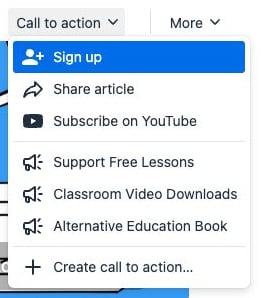
Editing a CTA in an article
Click the CTA and select Edit. Changes apply to that specific CTA in the article by default. To update the shared CTA, select Edit for all articles, then Update all articles. You can also edit the shared version from Settings → Calls to action.Article-specific customizations take precedence over changes to the shared CTA. To use the shared version again, edit the customized CTA and click Reset to original. You can then choose Edit for all articles if needed.
Adding CTAs to every article
Use website-wide placements to show a promotion across your articles without inserting it into each one.1
Open the website editor
Go to your Website page and open the designer.
2
Choose your placements
Select Articles, then Design. Choose a Call to action under Mid-article, After article, or both.
3
Save your design
Click Save to apply the placements across your website’s articles. To remove a placement later, choose None and save again.