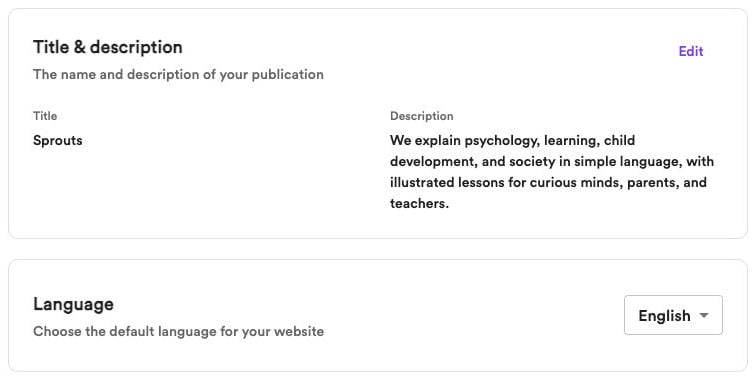
Title and description
Under General settings → Title & description, click Edit to update:- Title — Your website’s name.
- Description — A short introduction to your website and what readers can expect.
Language
Under General settings → Language, choose your website’s default language from the dropdown. Your selection is saved automatically. To choose the language of generated articles, use Generation settings.Social accounts
Open General settings → Social accounts and enter your profile URLs for YouTube, Instagram, Facebook, TikTok, or other supported platforms. Click Save changes when you’re finished. These links are used across your website and in structured data that helps search engines identify your social profiles. To remove a profile, clear its URL and save your changes.Connected YouTube channel
Under Site → Connected channel, view the YouTube channel connected to your website. If you haven’t connected a channel yet, click Add channel and follow the Google sign-in prompts to select one.Only the website owner can access connected-channel settings. Adding a YouTube URL under Social accounts adds a profile link; it doesn’t connect a channel for article generation.
Advanced settings
RSS feed
Under Settings → Advanced → RSS feed, enable or disable the feed that lets readers follow new articles in feed readers and other apps. When enabled, click the open-in-new-tab icon to view your feed at/rss.