View and manage members
The Members dashboard shows your members, membership statuses, and whether they’re subscribed to newsletters. Search by email address or filter by membership status. Click a member to open their profile:- Name and email — Update their contact information, then click Save.
- Newsletters — When newsletters are enabled, turn individual subscriptions on or off. These changes save automatically.
- Subscriptions — View their plan, paid access status, and renewal or access end date, or grant complimentary access.
Add members
1
Add a member
From Members, click Add member.
2
Enter their details
Enter their name and email address, then click Add member to open their profile.
Manually added and imported members are subscribed to your existing newsletters. You can adjust their newsletter subscriptions from their profiles.
Import members
Bring an existing audience to Convella using a CSV file.1
Prepare your file
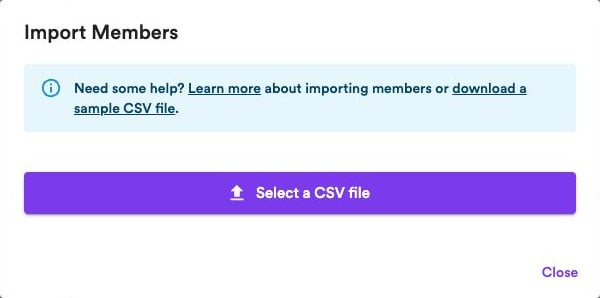
Export your subscribers from your current platform. In Members, open the ••• menu and select Import members. Download the sample CSV to check the format.Your file needs an
email column. You can also include name and created_at columns.2
Upload and import
Click Select a CSV file, choose your file, and review the number of members detected. Click Import to confirm, and keep the dialog open until the import finishes.
Importing members does not transfer paid subscriptions from another platform.