
Open the website editor
You can open the editor in two ways:- From Settings — Select Design under Site, then click Customize.
- From Website — Go to your Website page and click Edit site. When previewing an individual article or page, this button is labeled Edit design.
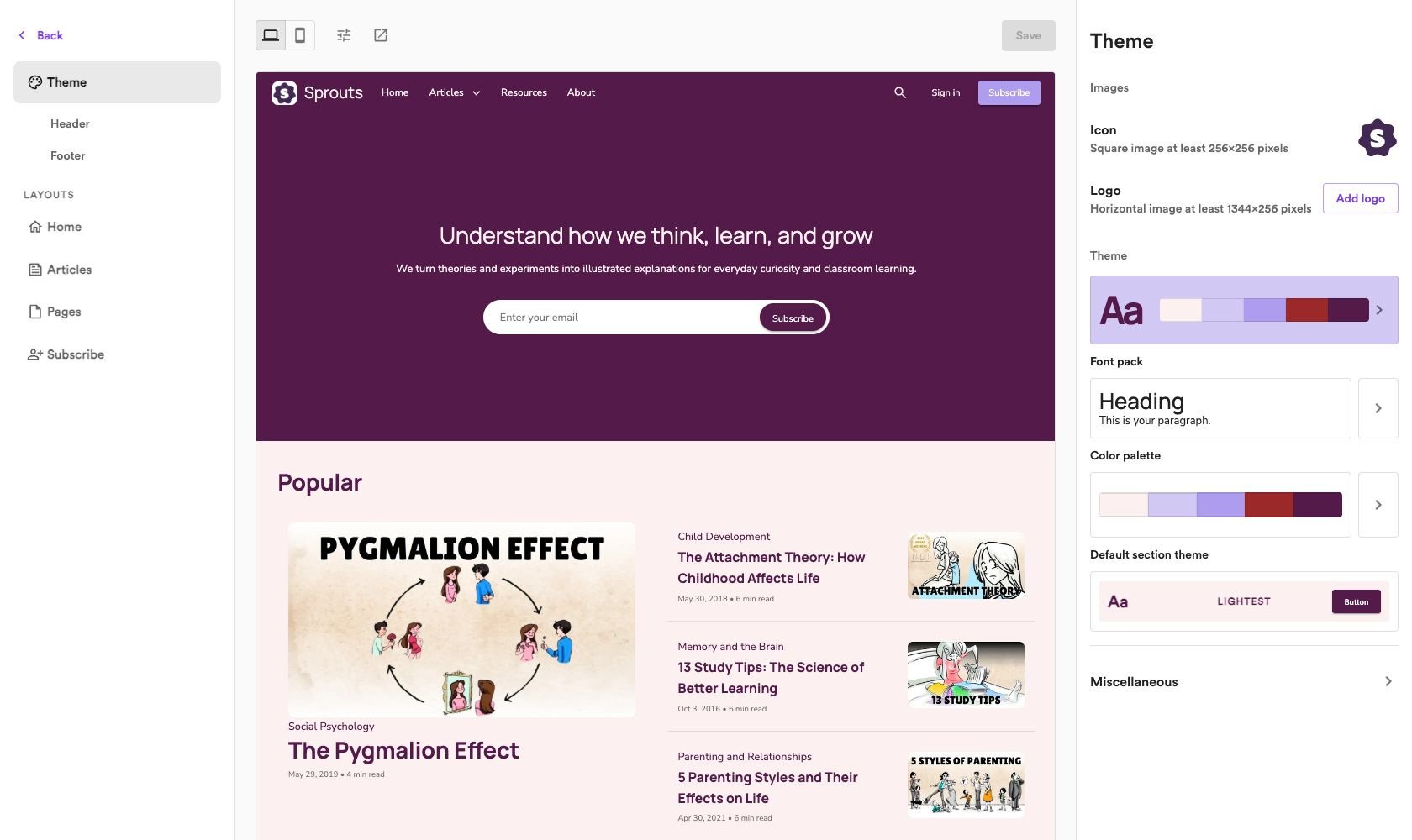
Customize your website
Use the editor’s sidebar to choose what to change:Theme
Customize your logo, icon, fonts, colors, and animations.
Header and footer
Edit your navigation and footer using Header and Footer under Theme.
Homepage
Open Home to choose a layout, add sections, and arrange your content.
Article page
Open Articles to customize how individual articles appear.
Pages
Open Pages to customize the layout of your website’s pages.
Subscribe page
Open Subscribe to customize your signup form and membership plans display.
Preview and save
Switch between the desktop and mobile previews to see how your website looks on different screen sizes.Preview settings
Click the Preview settings icon beside the device buttons to adjust what you see: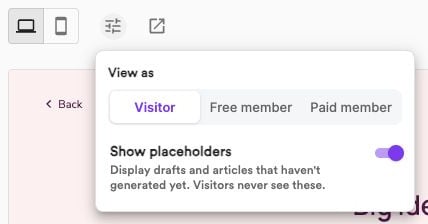
- View as — Choose Visitor, Free member, or Paid member to preview your website for each audience. Use this to check member-only content and subscription prompts.
- Show placeholders — Include drafts and articles that haven’t generated yet in the preview. Turn this off to preview your design without them.
Preview settings only change your preview. They don’t publish drafts or change anyone’s membership access. Visitors never see placeholders.