
Sign-up form
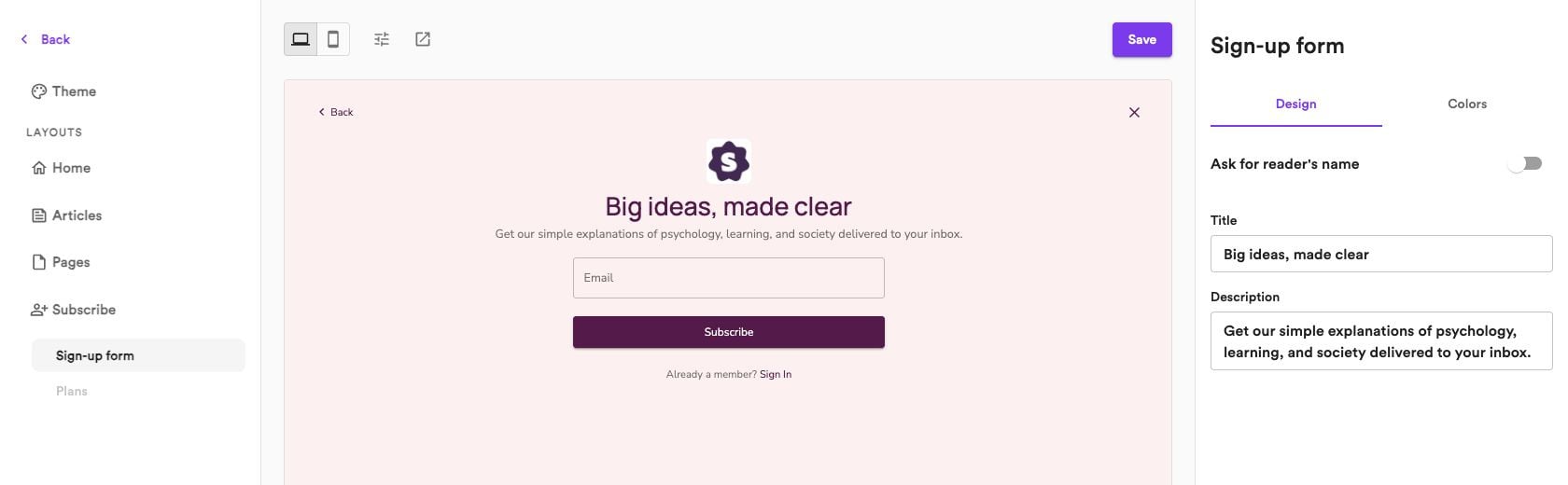
Select Sign-up form, then open Design to customize:- Title — The heading above your form.
- Description — A short message inviting visitors to subscribe.
- Ask for reader’s name — Collect a name alongside the subscriber’s email address.
Enable newsletters to edit the form’s text and name collection. You can manage this in Newsletter settings.
Plans
Select Plans to describe what readers receive with each membership option:- Free subscriber benefits — Summarize what’s included with a free membership.
- Paid subscriber benefits — Highlight the additional benefits for paying members.
Plans becomes available after you enable paid memberships and connect Stripe. Learn about paid memberships.