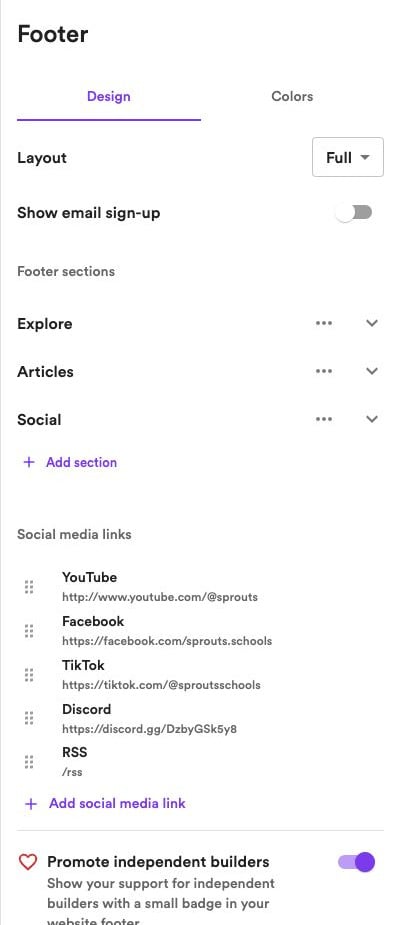
Header
Your header appears at the top of your website. Use its Design tab to customize:- Layout — Choose Logo on the left, Logo in the middle, or Stacked.
- Show icon — Show or hide your website icon when using the Logo on the left layout.
- Show announcement bar — Display a message above your navigation.
- Show search — Let visitors search your articles. Enabled by default on all plans; turn it off to hide search.
- Subscribe button override — Turn this on to customize the header’s subscribe button text.
Header colors
Open the Colors tab and choose:- Adaptive — Use the color theme of the first section on each page.
- Solid — Choose a consistent section color theme for your header.
Navigation menu
Under Navigation menu, click Add menu to create a link. Choose its label and destination:- Internal page — Link to your homepage or another page on your website.
- External link — Enter a destination URL.
- Tag — Link to articles with a particular tag.
- Dropdown — Group several links under one menu item.
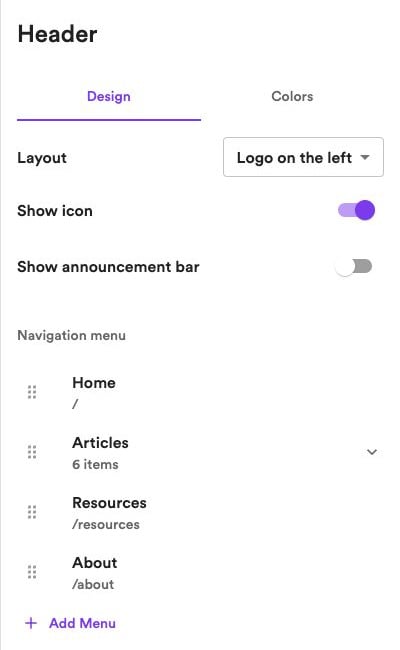
Footer
Your footer appears at the bottom of your website. In its Design tab, choose a Minimal or Full layout. Use the Colors tab to choose a section color theme or follow your site’s default.Email sign-up
Turn on Show email sign-up to add a subscription form. Click the edit icon beside it to customize the title, description, and button text.Email newsletters must be enabled to use the footer sign-up form. You can manage them in Newsletter settings.
Footer sections
With the Full layout, organize links into titled sections:1
Add a section
Click Add section, expand it, and enter a Section title.
2
Add links
Click Add link, then enter its Text and URL. Repeat for each link you want in the section.
3
Arrange your sections
Use a section’s menu to move it up or down, or remove it. To remove an individual link, click its delete icon.
Social media links
Click Add social media link, choose a platform, and enter your profile URL. Click an existing link to edit it, or drag its handle to change the order.