
These settings control the design across your website’s articles. To change an individual article’s content, use the article editor.
Article layout
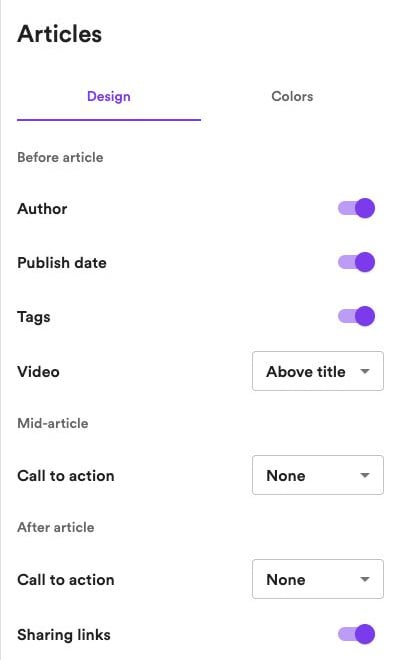
Open the Design tab to choose which elements appear around your article content.Before article
- Author — Show or hide the article’s author.
- Publish date — Show or hide its publication date.
- Tags — Show or hide its associated tags.
- Video — Place the original video’s player Above title or Below title, or choose Hidden. This applies to articles with a source video.
Mid-article
Choose a Call to action to display within your articles, or select None to leave this placement empty.After article
- Call to action — Choose a CTA to display at the end of your articles, or select None.
- Sharing links — Show or hide links readers can use to share the article.
Additional sections
Add sections below your articles to help readers explore more content or subscribe. Click Add section and choose:- Articles — Display more articles using Latest, Popular, Handpicked, or a tag as the source. Popular ranks articles by their source videos’ YouTube views.
- Promo — Highlight a product, service, or offer with text, an image, and a link.
- About — Introduce yourself or your website.
- Subscribe — Invite readers to subscribe, with an optional email field when newsletters are enabled.